
Nano Banana Pro: Google’s New AI Image Model That’s Changing Presentations Forever

When Google dropped Nano Banana Pro (also known as Gemini 3 Pro Image) on November 20, 2025, it quietly became one of the most exciting tools for anyone who creates slides. This isn’t just another image generator — it’s a specialized model built to create stunning, presentation-ready infographics, diagrams, and full slide layouts that actually look professional.
Whether you’re a student preparing a thesis, a marketer building a pitch deck, or a consultant who lives in PowerPoint, Nano Banana Pro can turn plain text into visuals that tell a story. It’s fast, surprisingly accurate, and — most importantly — designed with real presentation needs in mind.
What Exactly Is Nano Banana Pro?
Nano Banana Pro is Google’s latest dedicated image-generation model, released as part of the Gemini family. It represents a major leap forward in AI visuals, especially for business and educational use. While earlier models could create pretty pictures, Nano Banana Pro excels at structured content: clean charts, beautiful infographics, process diagrams, and complete slide designs that look like they were made by a professional designer.
The model understands presentation logic. Ask it for a “slide explaining quarterly revenue growth with a clean minimalist style,” and it delivers something you can actually use in a boardroom — not just a random artistic render.
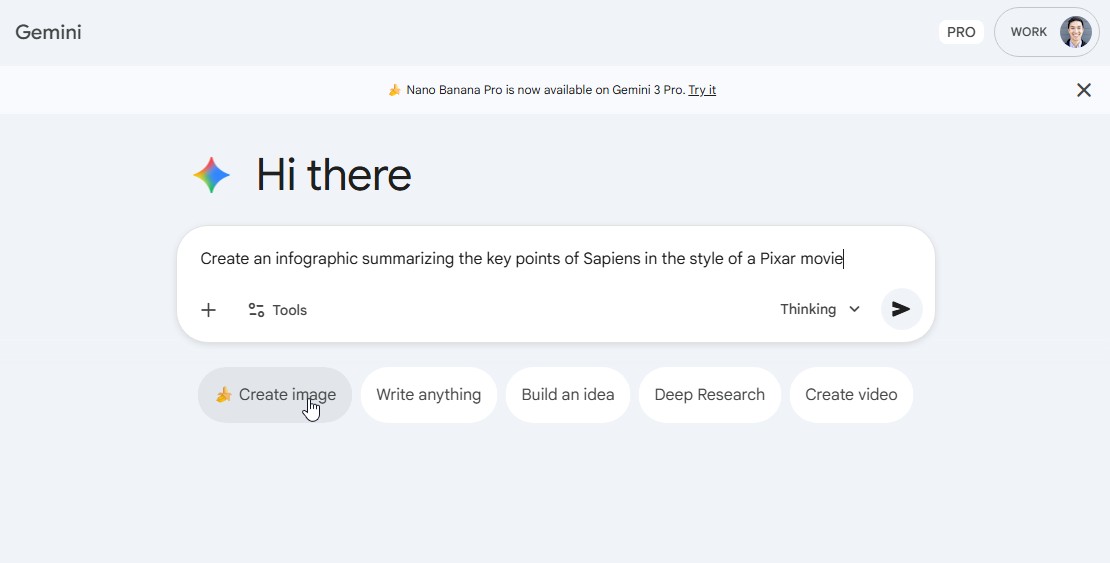
How to Get Access to Nano Banana Pro
The good news? You don’t need any special subscriptions or waitlists. Nano Banana Pro is available right now through two of Google’s most popular tools.
The simplest way is directly inside the Gemini chatbot. Just open Gemini, look for the banana icon in the image generation options, and select Nano Banana Pro. (Pro tip: Sometimes the interface shows “Nano Banana” instead — that’s the lighter version. Make sure you specifically choose the Pro model for the best results.)
The second — and often more powerful — option is through NotebookLM. Here you can upload documents or paste text and then click “Create slides” or “Create infographic.” The model will transform your content into a full slide deck or a single polished infographic. It can take a minute or two to generate, but the output quality is worth the short wait.
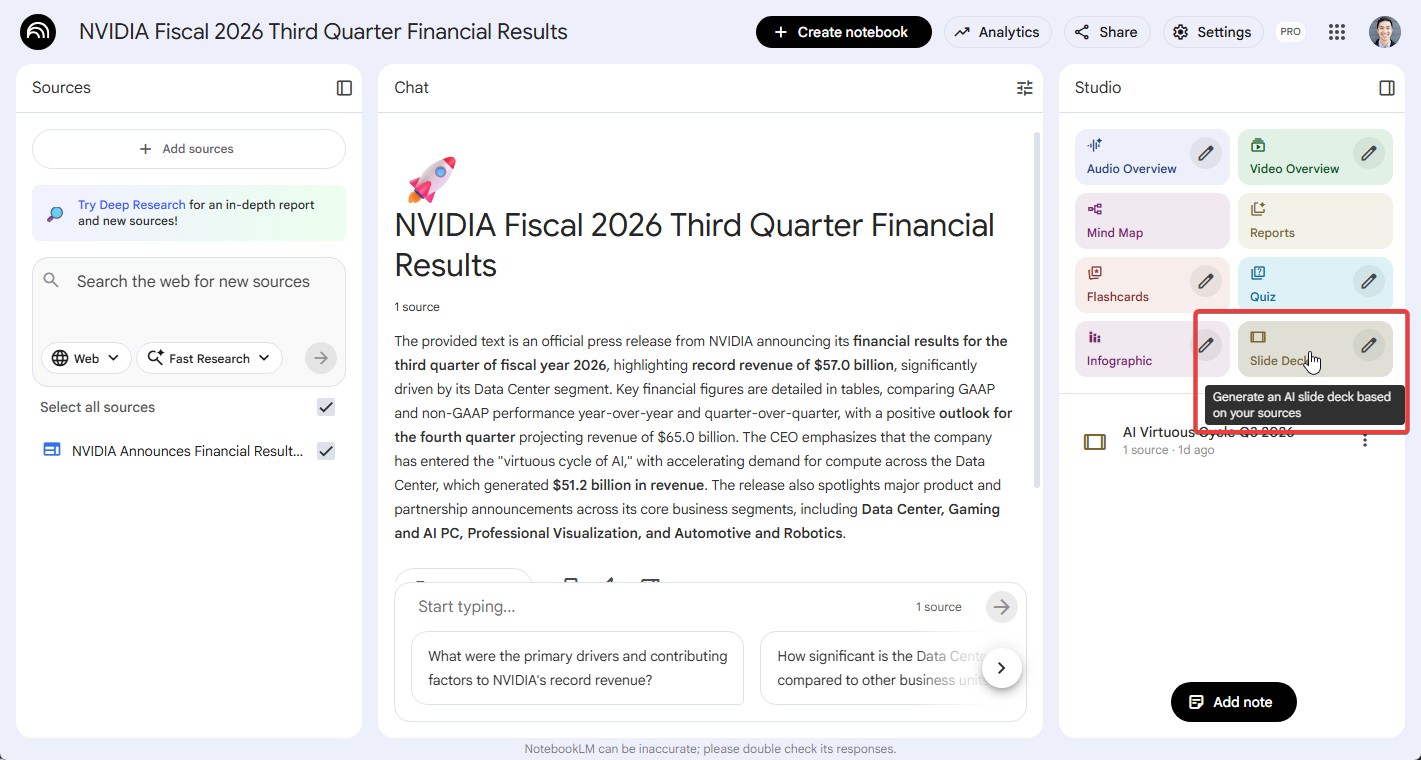
How to Use Nano Banana Pro in PowerPoint
PowerPoint users have two straightforward paths to bring Nano Banana Pro visuals into their decks.
The fastest method for most people is simply generating images in Gemini and copy-pasting them into PowerPoint. It works perfectly and gives you full control over formatting once the image is on the slide.
But the real game-changer is using a third-party add-in like Plus AI. Once installed, you get a dedicated “Insert Image” tab inside PowerPoint. Choose Nano Banana Pro from the model dropdown, write your prompt, and the AI drops a high-quality image directly onto your slide. You can then resize, crop, or apply PowerPoint’s native effects just like any other picture.
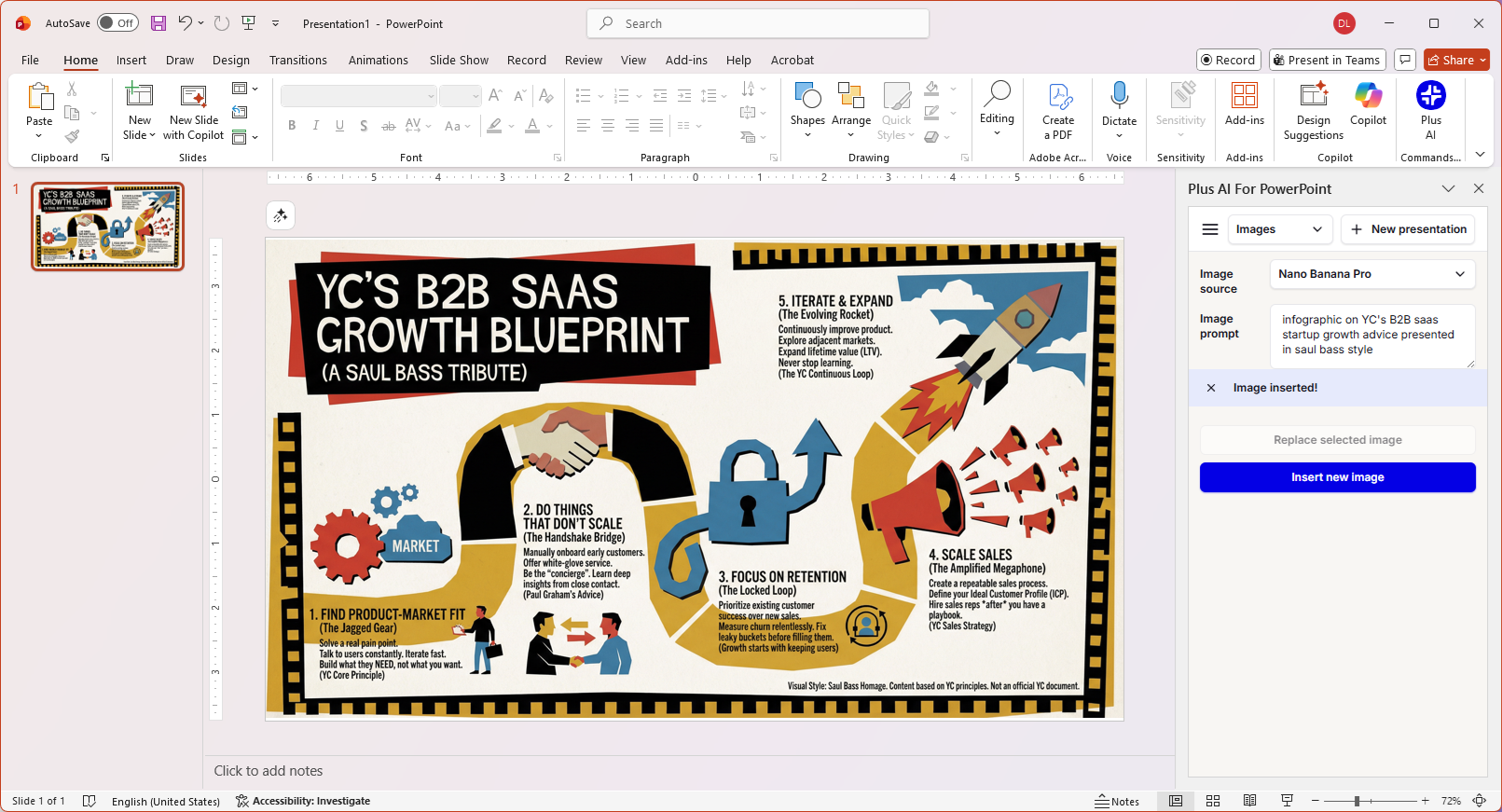
Many professionals are now using this workflow: prompt in Gemini for complex concepts, then refine and polish inside PowerPoint. The combination feels almost magical compared to manually creating diagrams in SmartArt or hunting for stock images.
How to Use Nano Banana Pro in Google Slides
Google Slides users are in a similar position. There isn’t a native, one-click integration yet (though Google has confirmed it’s coming soon), but you can still get fantastic results today.
The easiest route is again through the Plus AI add-on for Google Workspace. After installing it, click “Add Image,” select Nano Banana Pro, type your prompt, and the image appears instantly on your slide. You can then use Google Slides’ built-in tools — especially the excellent “Remove background” feature — to make the visuals pop even more.
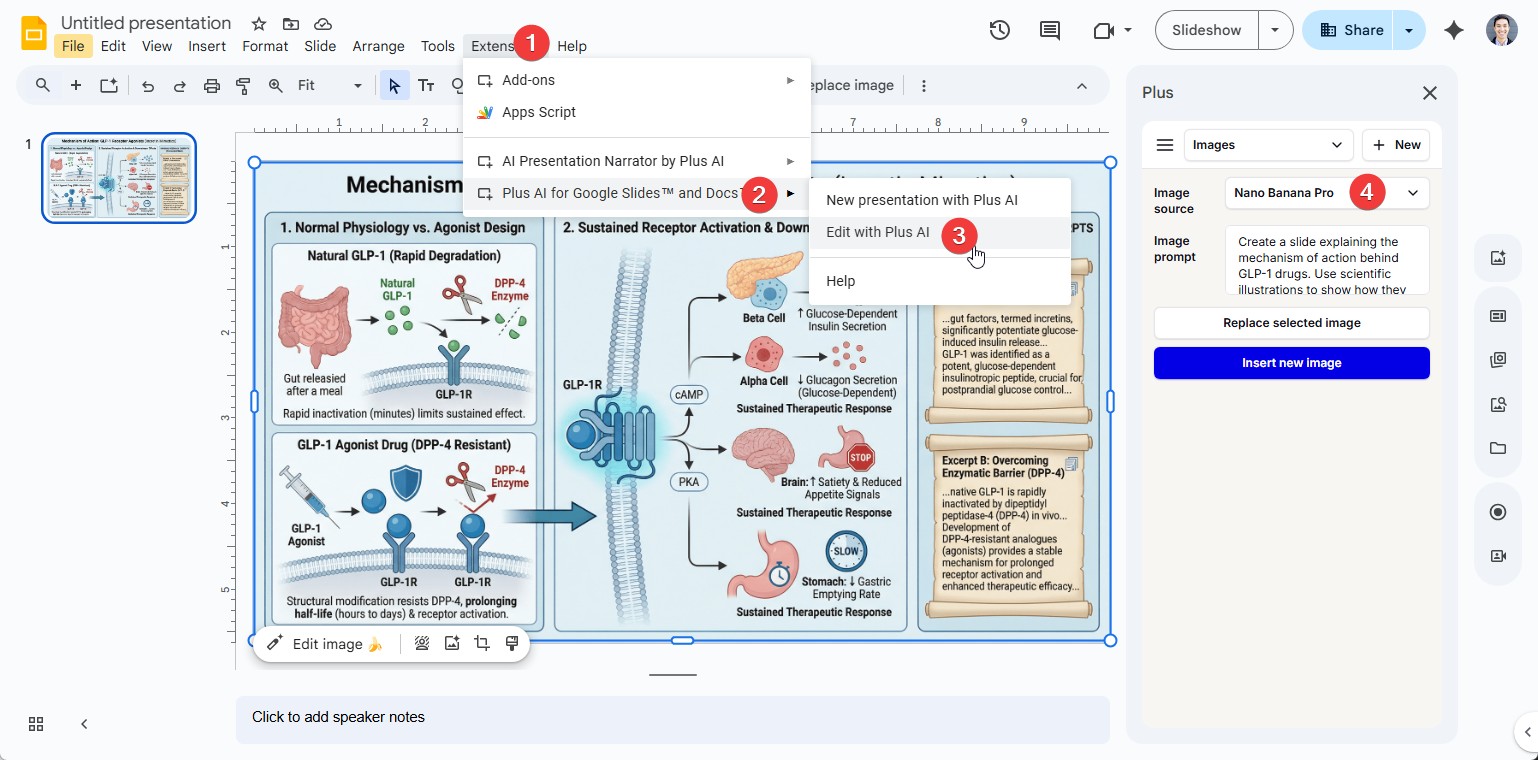
If you prefer the manual route, simply generate your image in Gemini or NotebookLM and paste it into Google Slides. The quality holds up beautifully, and because the images are high-resolution, they look crisp even on large screens or when exported to PDF.
Conclusion: Is Nano Banana Pro Worth It?
Nano Banana Pro is genuinely one of the biggest steps forward we’ve seen for presentation creators. It turns the tedious process of making visuals into something fast, creative, and surprisingly professional. You can now explain complex ideas, show data stories, or illustrate processes with images that previously would have taken hours of design work.
That said, it’s still an early version. The images aren’t editable like native PowerPoint shapes — you can’t click on text and change it directly. If you need heavy customization after generation, you’ll either ask the AI to revise the entire image or do minor tweaks in your presentation software. For many users, this limitation is minor compared to the time saved.
As Google continues to improve the model and roll out deeper integrations, Nano Banana Pro is poised to become a standard tool in every presenter’s toolkit. Whether you’re building your next client pitch, classroom lecture, or internal strategy deck, this model can help you create visuals that actually get remembered.
Frequently Asked Questions
How do I use Nano Banana Pro?
The easiest way is through the Gemini chat app. Look for the banana icon and make sure you select the “Nano Banana Pro” option (sometimes labeled as Gemini 3 Pro Image).
Can I edit Nano Banana Pro images like normal slides?
Not yet. The generated images are static. You can ask Gemini to make changes by describing them (“make the title bigger and change the color scheme”), but you can’t edit text or shapes directly like native PowerPoint or Slides elements.
How can I make full slides with Nano Banana Pro?
Prompt the model specifically for “slides” or “infographics.” In NotebookLM you can even upload source material and ask it to create an entire deck. For the smoothest experience inside PowerPoint or Google Slides, use an add-on like Plus AI that brings Nano Banana Pro directly into your presentation software.
Ready to try it? Head over to Gemini right now and start experimenting — your next presentation might just look better than ever.